We were wondering if there is anyway we can create a button to download the selected items within a related list preferably to a zip file if more than one e.g.:
We can offer paid support for adding button that will download selected files. If you are interested, please email us at support@plumsail.com for details.
4 years after, I am curious if the feature has been implemented or not I found some sources “JSZip” I can download locally to create a ZIP File and download can be done via PnP JS, but is there “built-in” feature that would help me to Download the files when selected.
Another approach for me, is to navigate the people to the URL (to the library) where the documents are stored, select them and download with the default Sharepoint feature. Although, there are other folders that "they do not have to see" and setting up permission right now in this application is not suitable.
We can offer paid support for adding the ability to download files selected in the List or Library control. Please email us at support@plumsail.com if you are interested.
This can help you to select the documents/files and sequentially download them
/**
 * Example: How to add a "Download" button to a SharePoint Library control in Plumsail Forms
 *
 * This code shows how to add a custom "Download" button to a Document Library control on a Plumsail Form.
 * When multiple files are selected in the library control, clicking "Download" will sequentially trigger downloads for each selected file.
 *
 * Requirements:
 * - SharePoint context (_spPageContextInfo)
 * - The library control in the form have the internal name "YourControl". Update this if your control is named differently.
 */

// Wait until the form is rendered
fd.spRendered(() => {
  // Variable to store download URLs of selected files
  let fileUrlsHtml = [];

  // Reference to your document library control (update "YourControl" to your actual control name if needed)
  const libraryControl = fd.control("YourControl");

  // Define the custom download button
  const downloadBtn = {
    text: "Download", // Button text
    class: "btn-primary", // Button CSS class for styling
    visible: false, // Button is hidden by default
    location: 0, // Button will appear in the top buttons row
    icon: "Download", // MS-Office UI Fabric icon name
    click: () => {
      // Only trigger download if there are file URLs available
      if (fileUrlsHtml.length) {
        // Loop through each selected file URL
        fileUrlsHtml.forEach(
          (u, i) =>
            setTimeout(() => {
              // Create a temporary anchor element for download
              const link = document.createElement("a");
              // Replace spaces with %20 and add download query
              link.href = u.replace(/ /g, "%20") + "?download=1";
              link.setAttribute("download", "");
              document.body.appendChild(link);
              link.click();
              document.body.removeChild(link);
            }, i * 800) // Delay each download by 800ms to avoid browser limitations
        );
      }
    },
  };

  // Add the custom download button to library control's button array
  libraryControl.buttons.push(downloadBtn);

  // Watch for changes in selected items in the library control
  libraryControl.$watch("selectedItems", (items) => {
    // Detect portal URL from SharePoint context (removing trailing slash)
    const portal = _spPageContextInfo.portalUrl.replace(/\/$/, "");
    // For all selected items, build the proper absolute file URL
    fileUrlsHtml =
      items && items.length ? items.map((i) => portal + (i.FileRef.startsWith("/") ? i.FileRef : "/" + i.FileRef)) : [];
    // Show or hide the button depending on whether any items are selected
    downloadBtn.visible = fileUrlsHtml.length > 0;
  });
});
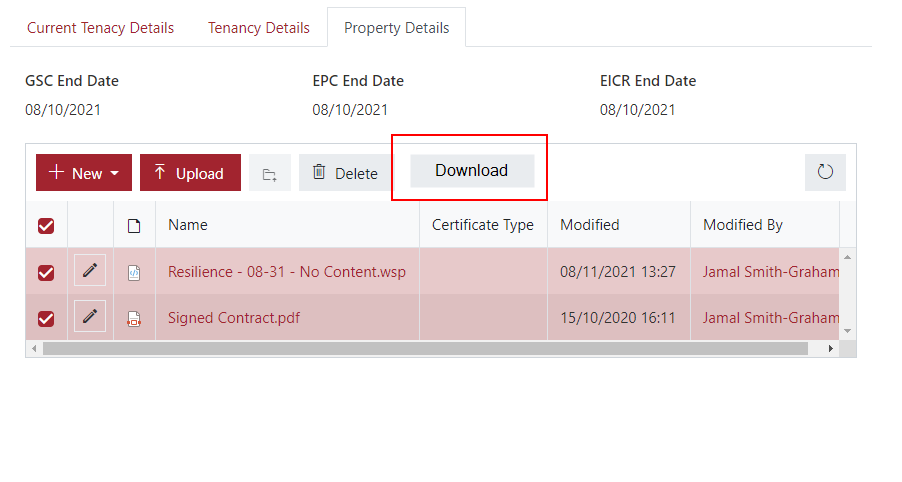

 I found some sources “JSZip” I can download locally to create a ZIP File and download can be done via PnP JS, but is there “built-in” feature that would help me to Download the files when selected.