CraigFox
November 3, 2026, 8:27pm
1
Is there a primer for Plumsail's JSON formatting of a datatable? I see the JSON (sample below), but I cannot figure out how to add on (color, alignment, etc).
{
Dear @CraigFox ,
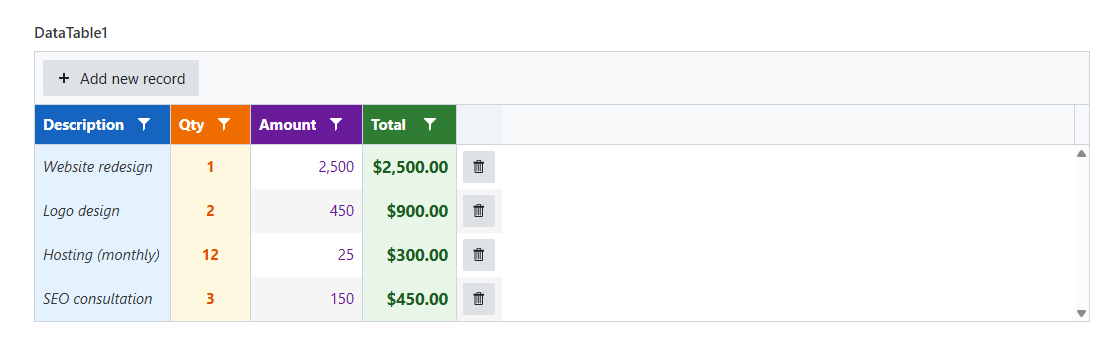
The Data Table is built on the Kendo UI Grid, so you can set alignment, color, and other styles per column. Add this to the JavaScript editor and replace DataTable1 with your control’s Name:
fd.rendered(() => {
    const dt = fd.control('DataTable1');

    const columns = dt.widget.options.columns.map(c => {
        // Description: soft blue background
        if (c.field === 'psDesc') {
            c.attributes = { style: 'background-color: #e3f2fd; font-style: italic;' };
            c.headerAttributes = { style: 'background-color: #1565c0; color: #fff; font-weight: bold;' };
        }
        // Qty: centered, amber highlight
        if (c.field === 'psQty') {
            c.attributes = { style: 'text-align: center; background-color: #fff8e1; font-weight: bold; color: #e65100;' };
            c.headerAttributes = { style: 'text-align: center; background-color: #ef6c00; color: #fff; font-weight: bold;' };
        }
        // Amount: right-aligned, purple text
        if (c.field === 'psAmount') {
            c.attributes = { style: 'text-align: right; color: #6a1b9a;' };
            c.headerAttributes = { style: 'text-align: right; background-color: #6a1b9a; color: #fff; font-weight: bold;' };
        }
        // Total: right-aligned, bold green on light green
        if (c.field === 'psTotal') {
            c.attributes = { style: 'text-align: right; background-color: #e8f5e9; color: #1b5e20; font-weight: bold; font-size: 1.1em;' };
            c.headerAttributes = { style: 'text-align: right; background-color: #2e7d32; color: #fff; font-weight: bold;' };
        }
        return c;
    });

    dt.widget.setOptions({ columns });
});
For styling the whole table, such as the header row, you can use the CSS editor:
.k-grid th.k-header {
    font-weight: bold;
}
See an example here - Form 11/6/2026
More JavaScript options are in the Data Table docs: Data Table — Plumsail Web Forms Documentation
What look are you going for? If you need something more specific, like highlighting rows based on a value, I’m happy to put together an example.
We'd also love to hear what you’re building with the form