Hi, I’m trying to figure out how to limit the number of allowable rows on a data table, based on a selected choice.
I want to limit the number of people who can register using the data table for each date on the dropdown to 25.
i.e., If someone wants to register five people for Date A, and there were already 23 people registered, they should only be able to enter two rows at most, with an error message letting them know their selected date is at capacity. If that same person changed to Date B, which had only 10 people registered, they would be able to register all five.
Unfortunately, I’m not sure how to go about doing that since I can’t find any documentation on it (the closest I could find was a static limit on the number of data table entries).
There are currently two fields on the form: one is a dropdown with a list of dates pulled from an external Excel workbook, and the other is a data table. I’m not sure whether to keep the date selection and table of registrants separate or have them select their desired dates within the data table as a dropdown column (the dates disappearing as they fill up).
I assume the data table would need to know how many people have already previously been registered per date, so the Excel workbook is set up to count how many people per date have already been registered, but I’m not sure how to use that existing count as a limiter.
Any and all guidance is greatly appreciated! Thank you. 
Dear @fesupport,
Thank you for your post! Sounds exciting and we're happy to help!
This does seem possible with the use of Excel data source where you not only keep dates, but also columns for the number of guests/spaces, and you can pull this information as an extra column when a value is selected - Drop Down field — Plumsail Web Forms Documentation
Then, you can populate a hidden field with this number, and check against it using a custom validator for the length of the data table - Fields and controls validation — Plumsail Web Forms Documentation
Hope this helps! We can break it down further if necessary.
Hi, @Nikita_Kurguzov,
Thank you for your reply.
I’ve tried to pull extra fields before, but I can’t seem to get it to work.
This is the code I ended up with, for reference:
fd.rendered(() => {
    const dateField = fd.field('TrainingDate');
    dateField.$on('change', value => {
        let dateData = fd.field('TrainingDate').selectedItem;
        if (dateData) {
            fd.field('Organisation').value = dateData.Training_Organisation;
            fd.field('TraineeCount').value = dateData.Registered_Trainees;
        } else {
            fd.field('TraineeCount').value =
                fd.field('Organisation').value =
                    null;
        }
    });
});
The fields on the Excel table I’m pulling from are:
- Training_Program
- Date
- Time
- Delivery
- Training_Organisation [This is a column being used to test whether the code works because it already has pre-existing data.]
- Training_Date [This is the column primarily being pulled by the form field lookup.]
- Registered_Trainees [This is the column I’m trying to pull, based off a given date.]
Dear @fesupport,
I've prepared a very basic example, see if it works for you!
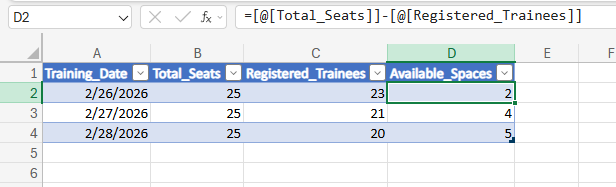
Here's my table with just 4 columns, available spaces column is calculated with a formula:
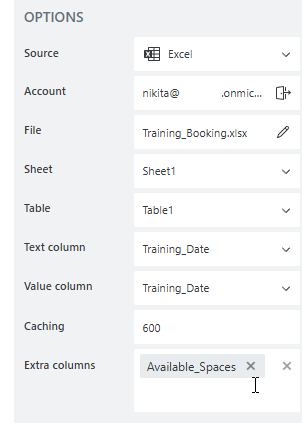
Here's my Excel selection on my form:
Here's the code that I've used:
fd.rendered(() => {
    fd.field('AvailableSpaces').disabled = true;
    const dateField = fd.field('TrainingDate');

    // The function updates available spaces with extra value, if there's any
    function updateSpaces() {
        fd.field('AvailableSpaces').value = 0;
        let dateData = dateField.selectedItem;
        if (dateData && dateData.Available_Spaces > 0){
            fd.field('AvailableSpaces').value = dateData.Available_Spaces;
        }
    }

    // updateSpaces when the date is changed
    dateField.$on('change', updateSpaces);

    // updateSpaces when the form is rendered
    updateSpaces();

    fd.control('TraineesInvited').addValidator({
        name: 'Trainees Invited validator',
        error: 'Not enough seats available',
        validate: value => {
            if (value.length > fd.field('AvailableSpaces').value) {
                return false;
            }

            return true;
        }
    });
});
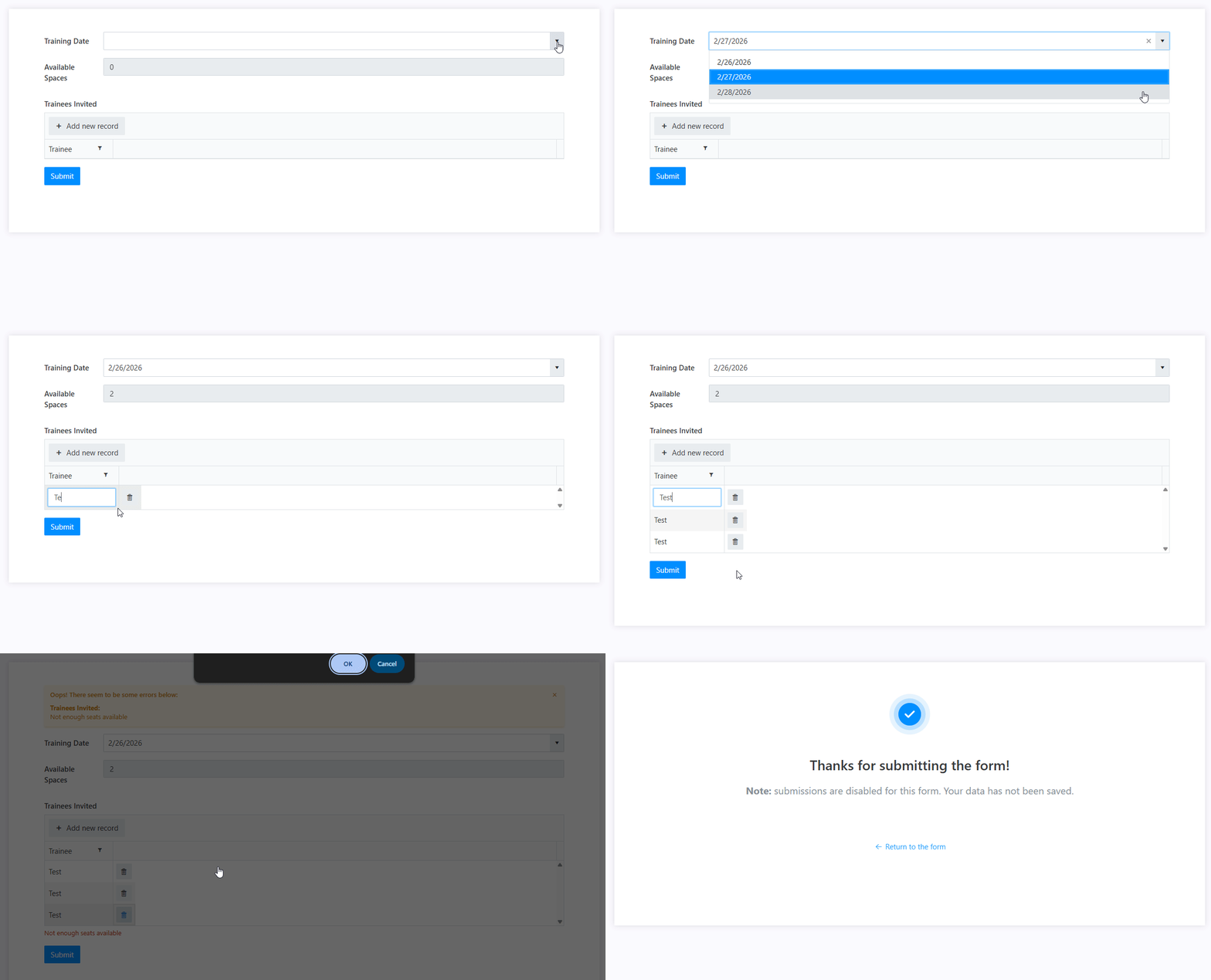
And here's how it works:
Thank you so much! This worked for me. 
Hi, @Nikita_Kurguzov,
I have a follow-up question I hope you can help with. The form works, but it doesn’t update unless the Excel file is open. Is there a way to set it up so that the Plumsail dropdown updates without needing the Excel file open?
Dear @fesupport,
Unfortunately, I am not sure what you mean. Updates? Open? What should update and what needs to be opened?
The field simply loads data from Excel. When you open the dropdown - it gets the latest data from the file. If file is updated in Power Automate, it should still update the data.
I can see that there might be issues if multiple users open the form at the same time, but other than that - it should be fine.
Hi, @Nikita_Kurguzov, apologies for the confusion. I meant to say that the additional column (i.e., remaining seats) pulled from the available training dates doesn’t update unless the source Excel file (which the form both pulls and adds data to and from) is open and refreshed (usually manually, because I can’t seem to make it refresh using Power Automate with ‘Get content’, ‘Get tables’, ‘Get row’, and ‘Update row’ actions).
The form does feed into the Excel file perfectly fine, but the data itself doesn’t seem to want to update automatically. Using the ‘Get row’ action mentioned earlier, the row still had the previous number of remaining seats instead of the updated one, following the addition of the new registration row.
What are your thoughts?
Dear @fesupport,
There might be some caching going on, how long did you set the cache for on the dropdown? Is it set to 0?
If you can record a short video of what you experience - it might help!