Hi All,
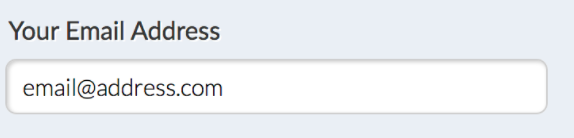
Is it possible to have faint grey text in a text box as pictured below... When the user clicks on it, it disappears...
Thank you in advance!
Hi All,
Is it possible to have faint grey text in a text box as pictured below... When the user clicks on it, it disappears...
Thank you in advance!
Hello @Qman,
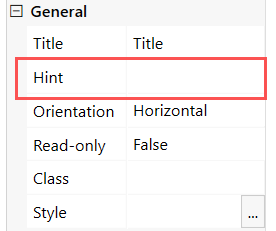
You can define a placeholder text that appears in the input before a user starts typing in the field General setting >> Hint:
Hi,
I don't have this option for some reason....
Is it because, my text box is connected to Sharepoint? Or is this a premium feature?
What SharePoint and Plumsail Forms designer versions are you using?
You can find the Plumsail Forms version in the bottom right of the designer window.

Hi @Margo,
I am using Sharepoint 2019 & version 1.4.8 of Plumsail
Hello @Qman,
Thank you!
You can add a hint programmatically using the code:
fd.spRendered(function(){
 fd.field('Title').placeholder = 'Hint text'
});
You can also update the Plumsail Forms to the latest version v1.8.7 which has all the latest updates and bug fixes. Also in the latest version the Hint property is available in the designer.
Find the instructions on how to update the Plumsail Forms On-Premises solution here.
Great! Thanks a lot for your help! 
Hi @Margo,
Is it possible to use this code for numerical text boxes? I am having issues in this regard.
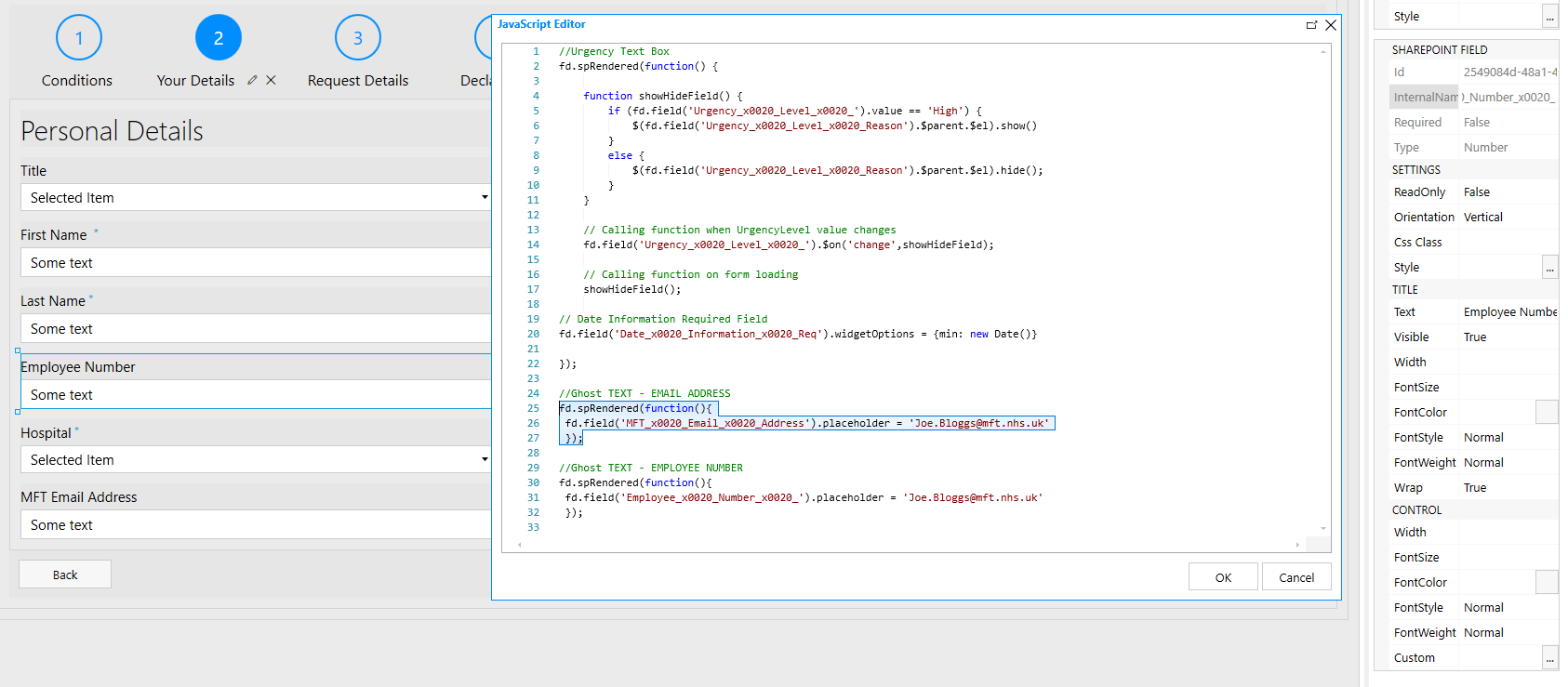
Please see the image below... The employee number is fixed at 8 digits.
Hello @Qman,
Yes, you can use the same code for the Number field type. What issue have you faced exactly? Could you please share more details.
Hi @Margo,
I have changed the SharePoint field from Number to Text but the issue I will have is ensuring that the values entered in the form are ONLY numerical and with a fixed numerical value. E.g. Employee Number only has 8 numbers so the user is only allowed to put 8 numbers in.
Many thanks!
Hello @Qman,
The code should work for the Number field type:

Make sure you are using a valid field name in the code.
You can validate the number field by adding a custom validation:
fd.field('Number').validators.push({
    name: 'MyCustomValidator',
    error: 'Invalid number',
    validate: function(value) {
        if (value.toString().length != 8) {
            return false;
        }

        return true;
    }
});Hi @Margo,
For the code above, how would I validate it so that it only accepts a minimum of 8 digits but also things with hyphens that are considered 'strings'
Hello @DryChips,
You can use a masked input for this. You can specifies the input mask like this:
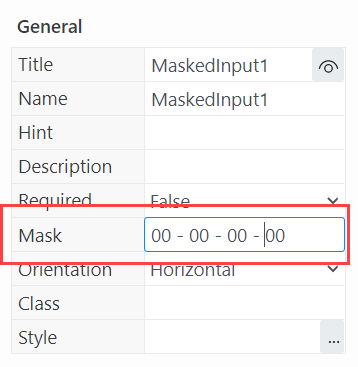
Thus, a user can only enter numbers separated by a hyphen:

Learn more about the masked input in our documentation here.
Hi @Margo,
I created this REGEX code and connected this to a random field to test if it works. I'm not sure what's wrong with this code...
fd.spRendered(function() {
fd.field('testing').validators.push({
name: 'MyCustomValidator',
error: '',
validate: function(value) {
if ((/^\d{8}(-\d{2})?$/).test(value)) {
return true; // Validation succeded
}
// You land here if it did not succeed
this.error = 'Value is not valid';
return false;
}
});
Is that a complete code you have on the form?
if so, the brackets are missing at the end of the code:
fd.spRendered(function() {
    fd.field('testing').validators.push({
        name: 'MyCustomValidator',
        error: '',
        validate: function(value) {
            if ((/^\d{8}(-\d{2})?$/).test(value)) {
                return true; // Validation succeded
            }
            // You land here if it did not succeed
            this.error = 'Value is not valid';
            return false;
        }
    });
});
Also, make sure that the testing field is a single line text field.
Ahh, silly me!
This works great! Thanks a lot!