Grid Location Interferes with Alert & Success Banners

QUESTION: How can I reposition alert and success banners to a different location than the top of the form?

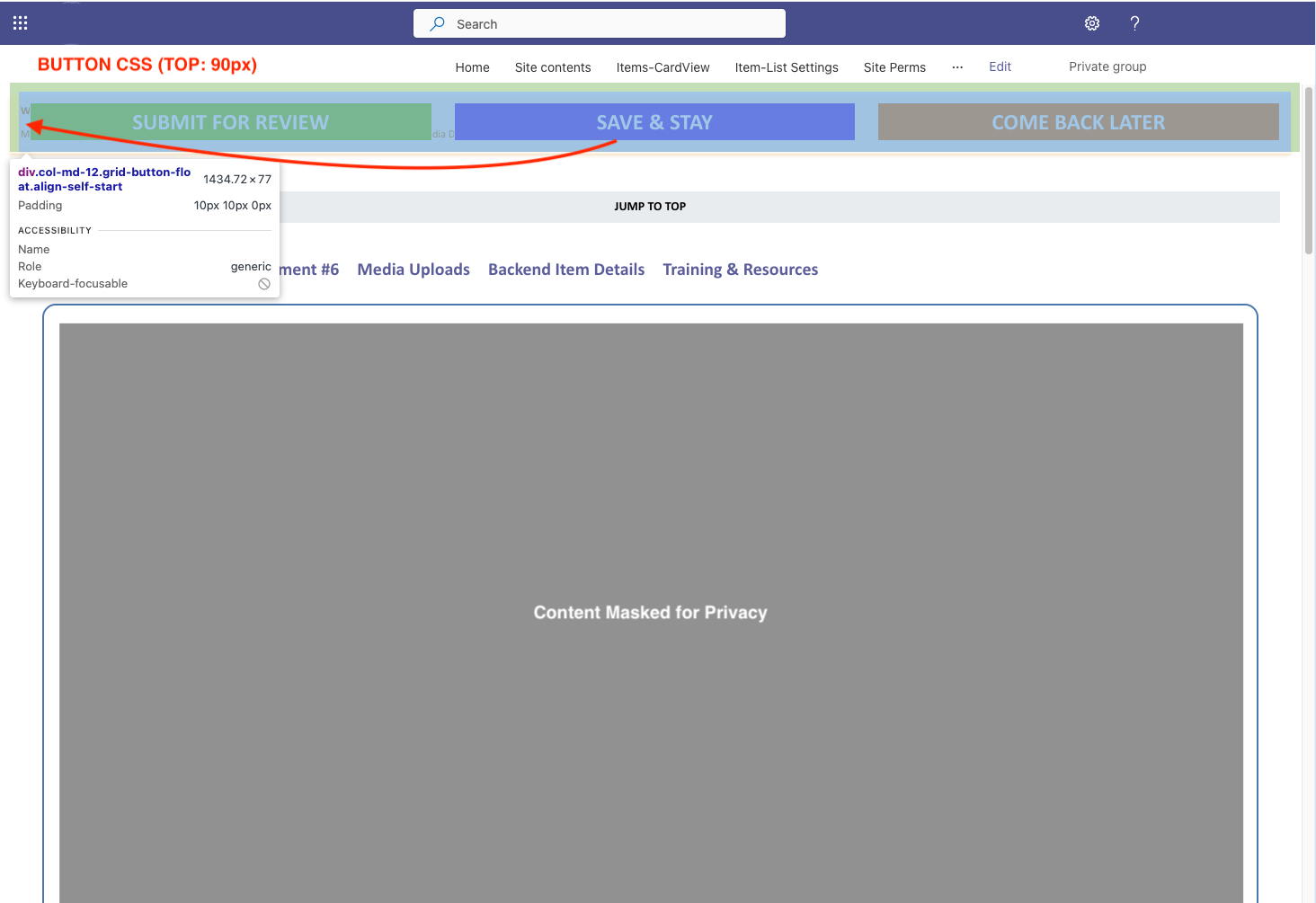
LAYOUT: I have placed three buttons in a Grid (SUBMIT FOR REVIEW, SAVE & STAY, and COME BACK LATER). CSS is set and the grid floats perfectly down the page and hovers above their current location as the user scrolls and works on different sections of the form.

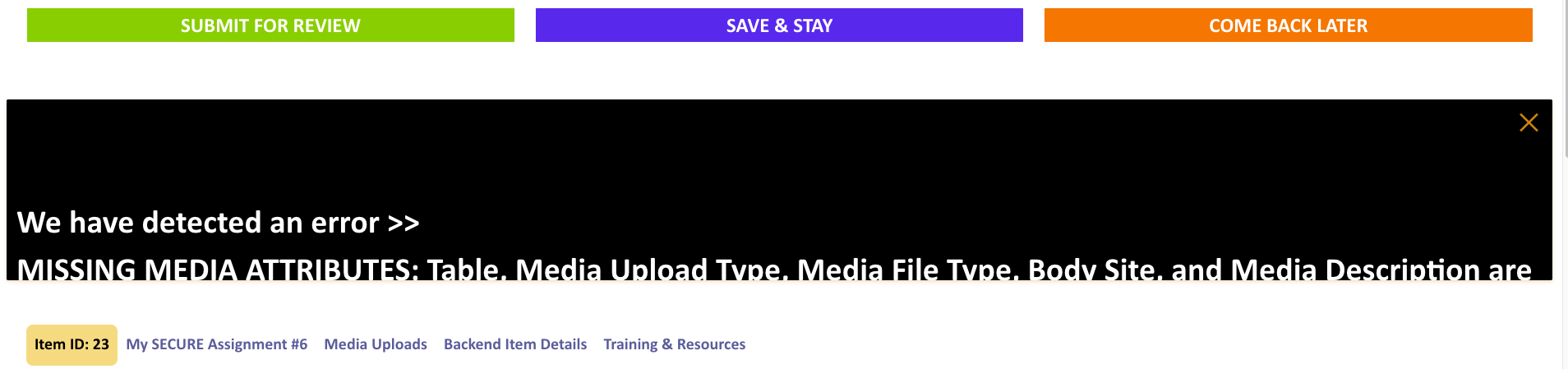
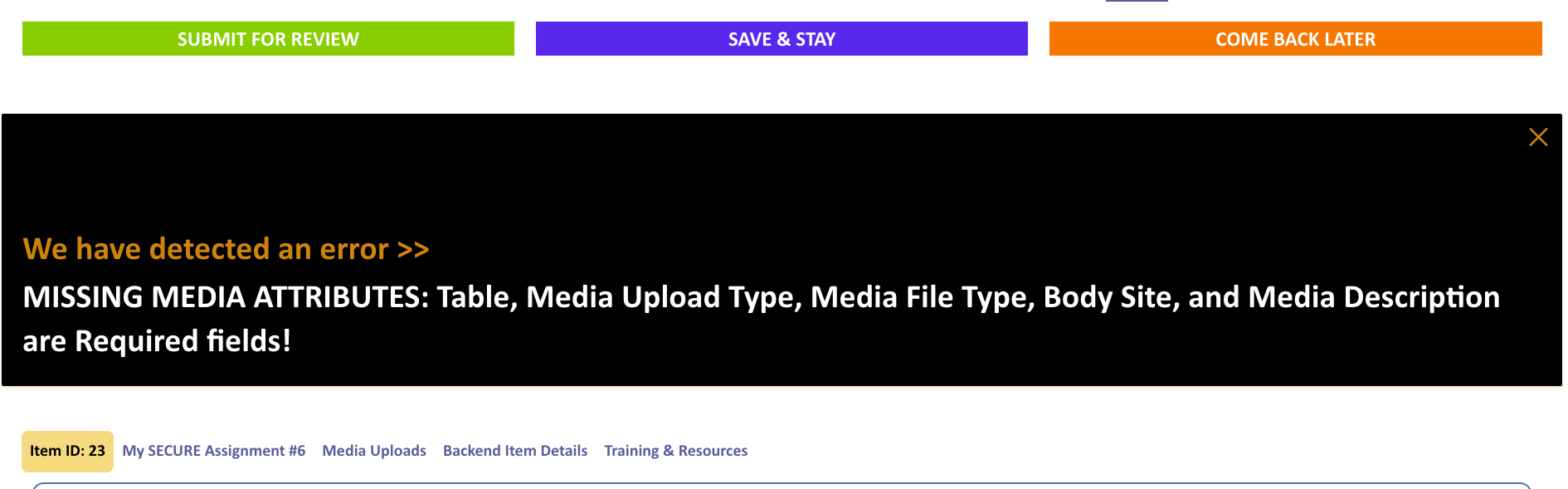
CONFLICTS: The first issue I noticed involved the SAVE & STAY button. When clicked, the success banner appeared behind the grid of the three buttons. Subsequent use of the other two save buttons failed and three errors, only resolved by a browser reload.

Next, I intentionally triggered an error and likewise the alert banner appeared behind the grid of three buttons.

When CSS positions the grid like so, the banners don’t resolve and go away, nor can I manually click the (x) to close the dialog:

/* This grid houses the three save buttons and is defined in the GRID CELL class field */

.grid-button-float {
    position: fixed; /* Keeps the dialog in a fixed position */
    top: 90px; /* Distance from the bottom */
    margin: 0 auto !important;
    padding: 10px;
    z-index: 1000; /* Higher value to stay above other elements */
    max-width: 98% !important;

}
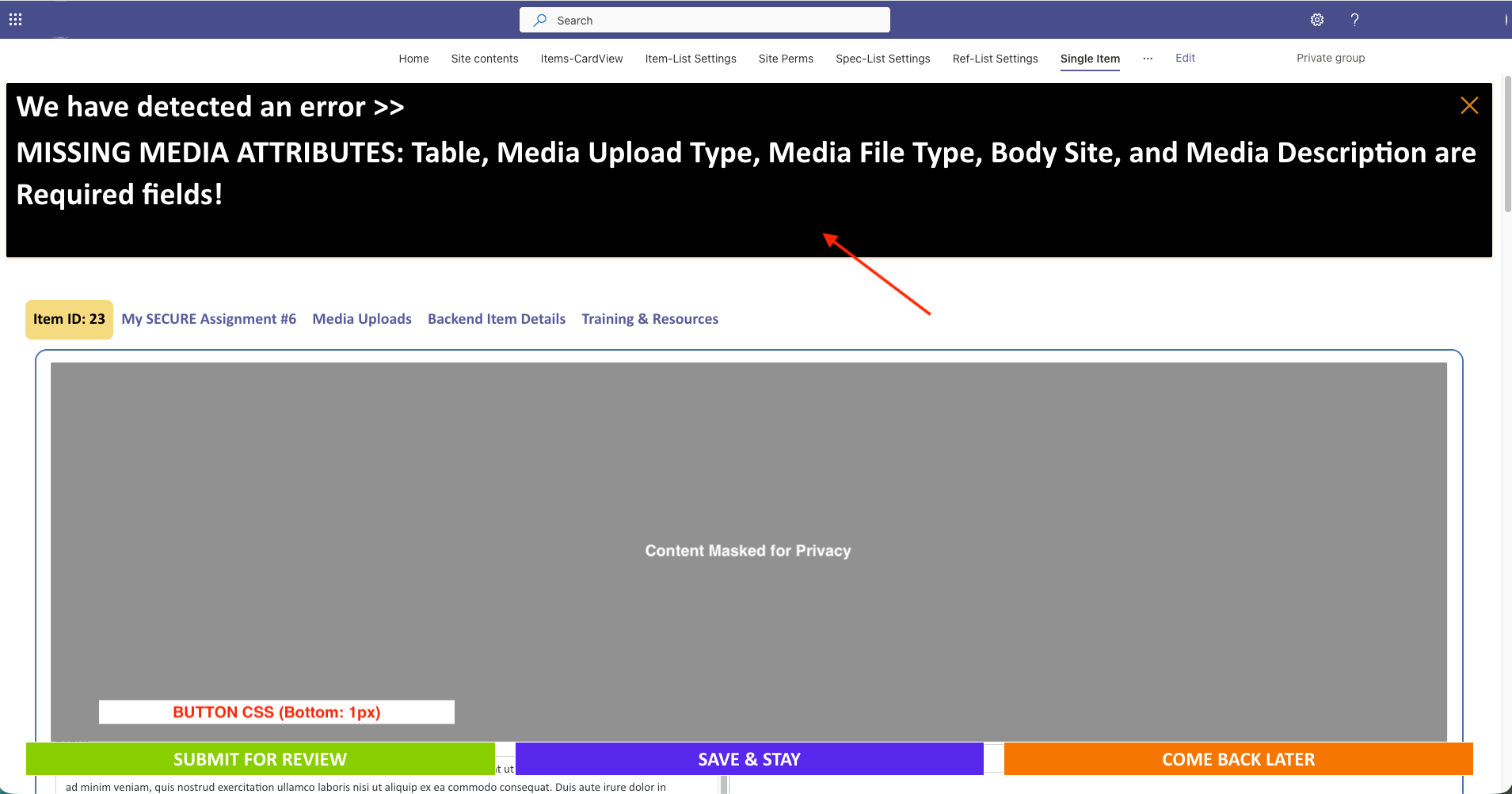
TROUBLESHOOTING: I experimented by targeting the self-start class, thinking if I could have the error or success banners popup mid page, that would solve the problem. When I did that, the banner did reposition but never resolved, nor could I manually click the (x) to close the dialog. The CSS below is one variation - I have tried many. The z-index is over-the-top but was something I tried to get at the (x) to close.

/* This is the box housing the alert. When the class is set as position: fixed, the banner does not clear; the built-in MS alert is "Oops..." but I have changed that with JavaScript to display "We have detected an error" */

.alert-body {
    position: fixed; /* Keeps the dialog in a fixed position */
    top: 600px !important; /* Distance from the top */        
    z-index: 5000 !important;
    line-height: 50px !important;
    height: 220px !important;
    background-color: black !important;
    width: 80% !important;
    font-weight: bold !important;
    font-size: 40px !important;    
    color: white !important; /* this defaults to orange if absent here + in alert-heading class */  
     
}

RESOLUTION (but not the goal): The current status is that if I move the save buttons to the bottom via CSS, and remove the CSS overrides for the alert banners, they resolve as expected and I can manually close the dialog too with the (x).

The grid floats on top of the page. But SharePoint alert banners (.ms-MessageBar, etc.) also live at the top of the DOM and don’t reserve vertical space, so the fixed-position grid overlaps them.

Trying this:

Move the SP banner container DOWN using CSS

SharePoint banners normally use a container like:

  • .ms-MessageBar

  • .od-MessageBar

  • Older pages: .ms-status-msg

This CSS forces them down the page:

/* Push SP native yellow/green alert banners BELOW your floating grid */
.ms-MessageBar,
.ms-status-msg,
.od-MessageBar {
    position: relative !important;
    margin-top: 200px !important;
    z-index: 1 !important;
}

Apply After Plumsail Form Loads (avoids race condition)

Plumsail’s rendering pipeline means SharePoint sometimes injects banners after your CSS loads.
Run this inside fd.spRendered() to ensure it's applied reliably:

fd.spRendered(function() {

    // after form is ready, move banners down
    setTimeout(function() {
        var banners = document.querySelectorAll(
            ".ms-MessageBar, .ms-status-msg, .od-MessageBar"
        );

        banners.forEach(function(banner) {
            banner.style.position = "relative";
            banner.style.marginTop = "200px";
            banner.style.zIndex = "1";
        });
    }, 300); // 300–500ms is safe
});

That made it worse.

Trying this:

/* Push Plumsail’s custom alert bar below the fixed buttons */
.plumsail-alert-bar {
    margin-top: 120px !important;   /* adjust based on button height */
}

FAIL

Trying:

/* Move Plumsail alert container down so it no longer overlaps buttons */
.alert, 
.alert-danger, 
.alert-warning, 
.alert-success,
.alert-heading {
    margin-top: 120px !important;   
}

This tells SharePoint/Plumsail:

  • “Whenever an alert appears, push it down.”

  • And because your buttons are fixed, they stay put.

CLOSER!

Next:

/* Move Plumsail alert container down so it no longer overlaps buttons */
.alert, 
.alert-danger, 
.alert-warning, 
.alert-success,
.alert-heading {
    margin-top: 120px !important;   
}


/* This is the box housing the alert: "We have detected an error" and if set as fixed does not clear; the built-in MS alert is Oops...but changed with JavaScript */
.alert-body {

    background-color: black !important;
    font-weight: bold !important;
    font-size: 40px !important;    
    color: white !important;
    padding: 25px !important;       /* replaces forced height */
    height: auto !important;        /* auto height FIXES the fight */
    line-height: 1.2 !important;    /* text behaves normally */

}

Trying:

/* --------------------------------------------------
   1. Reset the heading so it stops expanding the box
-------------------------------------------------- */
.alert-heading {
    margin: 0 !important;
    padding: 0 !important;
    line-height: normal !important;
    font-size: 28px !important;
    font-weight: bold !important;
    color: white !important;
}

/* --------------------------------------------------
   2. Make the alert-body behave like a normal block
      instead of a forced-height monster
-------------------------------------------------- */
.alert-body {
    background-color: black !important;
    color: white !important;
    font-weight: bold !important;
    font-size: 22px !important;

    padding: 25px !important;      /* natural spacing */
    height: auto !important;       /* AUTO fixes the fight! */
    line-height: 1.3 !important;   /* normal readable text */

    /* Move entire alert below the fixed buttons */
    margin-top: 140px !important;
}

/* --------------------------------------------------
   3. Style the close button so it doesn’t get misaligned
-------------------------------------------------- */
.alert-body .close {
    position: absolute;
    top: 10px;
    right: 10px;
}

SUCCESS:

JavaScript:

////>>>>>>>>>>>>>> Manage the alert and save button grid spacing

fd.spRendered(function() {

    function adjustButtonsForAlert() {
        const alert = document.querySelector('.alert-body');
        const buttons = document.querySelector('.grid-button-float');

        if (!buttons) return;

        if (alert) {
            const alertHeight = alert.offsetHeight;
            buttons.style.top = (alertHeight + 30) + 'px';
        } else {
            buttons.style.top = '105px'; // your normal position
        }
    }

    // run once on load
    setTimeout(adjustButtonsForAlert, 20);

    // run again whenever DOM changes
    const observer = new MutationObserver(adjustButtonsForAlert);
    observer.observe(document.body, { childList: true, subtree: true });

});

CSS:

/* This is the box housing the alert: "We have detected an error" and if set as fixed does not clear; the built-in MS alert is Oops...but changed with JavaScript */
.alert-body {

    padding: 14px 20px !important;   /* inset padding */
    background: black !important;
    color: white !important;
    line-height: 1.35 !important;
    border-radius: 4px !important;
    position: relative !important;
    z-index: 5000 !important;        /* ABOVE your fixed buttons */
    font-size: 25px !important;
    

}


/* This is the box housing the alert: "We have detected an error" and if alert-body is set as position: fixed, the banner remains viewable; the built-in MS alert is Oops...but changed with JavaScript  */
.alert-heading {

    margin: 0 0 6px 0 !important;
    color: white !important;


}


.alert-body .close {

    top: 8px !important;
    right: 10px !important;
    z-index: 6000 !important;

}

/* This grid houses the three save buttons and is defined in the GRID CELL class field */
.grid-button-float {
    position: fixed; /* Keeps the dialog in a fixed position */
    top: 105px;/* Distance from the bottom, originally had a value of 90, but testing alts to clear alert banner */
    margin: 0 auto !important;
    padding: 10px;
    border-radius: 5px;
    z-index: 1000; /* Higher value to stay above other elements */
    max-width: 98% !important;


}

The alert banner hides the save buttons until scroll or resolution. That works for me!