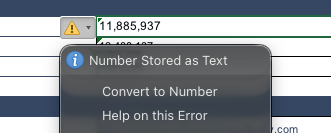
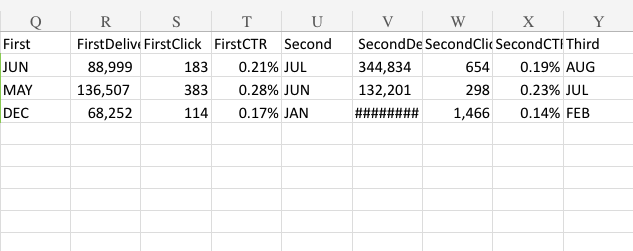
I reviewed the resulting file, and I can see that the numeric values are written in a format like 1,055,189 (with comma thousands separators). In Excel, this format can be interpreted as text depending on the workbook’s regional settings and the number format expected (for example, when a comma is used as a decimal separator in some locales). That is why you see the warning “Number Stored as Text”, even though the cell format is set to Number.
Could you please check and share:
Your Excel locale/region settings (or the expected number format)
How the numbers look in the original Excel file (a screenshot or a small sample file is enough)
Once I have this, I can suggest the best way to generate true numeric values.
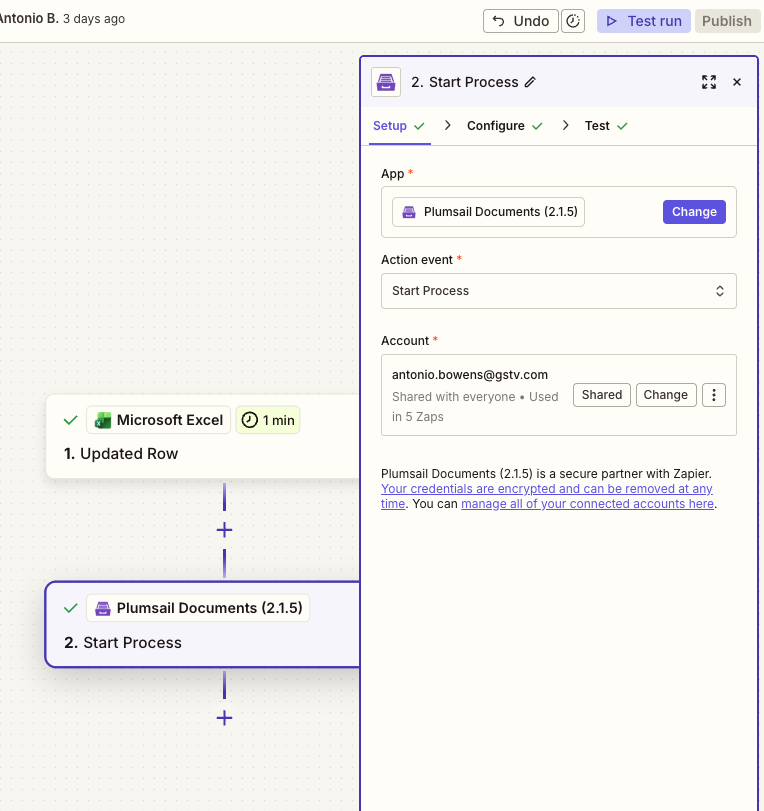
Could you please confirm which exact Plumsail Documents action you’re using in Zapier?
For example, if you use Generate Document From XLSX Template in Zapier, you сan select Locale to match your regional format. If the Locale is set correctly, the output should align with your Excel regional settings.
If the Locale is set correctly and the issue still occurs, could you please share:
A brief description of your Zap flow - what steps happen before the Plumsail Documents step;
A screenshot of the Zap step with the selected Plumsail Documents action and its settings;
The original XLSX file you’re converting.
You can send the files to support@plumsail.com and reference this conversation so we can investigate the issue for you.
In this case, you run a process saved in your Plumsail account (under Processes). The resulting file will be stored in the process history, where you can download it.
If you’re using this approach, please check your template: what is the cell format? The format should match the expected data type (e.g., number/text).
If the formats look correct and the issue still persists, please send us the payload and the result file so we can investigate further.
This action generates an XLSX file using the data you either map from a previous Zap step or enter manually in the action fields. You can also select the Locale setting in this case.
After the Plumsail Documents step, you can add another Zap step to save the file to OneDrive or send it by email. Please refer to the example in our article.
Please let me know which approach you’re using (or prefer). If needed, you can send the files to support@plumsail.com and reference this conversation so we can investigate the issue.
Yes, please share the template and the JSON data you are using, and refer to this community discussion.
This will help us better investigate the issue and assist you further.