felix
January 19, 2026, 2:06pm
1
Hello,
I wanted to set a custom font for the entire form.
I almost achieved this result by using the following code snippet:
@font-face {
  font-family: 'xxx';
  src: url('xxx') format('truetype');
}

.fd-form { /* Applies to the whole form */
  font-family: 'xxx', roman;
}

.pl-item { /* Applies to specific Plumsail items */
  font-family: 'xxx', roman;
}

.fd-field-control {
  font-family: 'xxx', roman;
}

.test {
  font-family: 'xxx', roman;
}
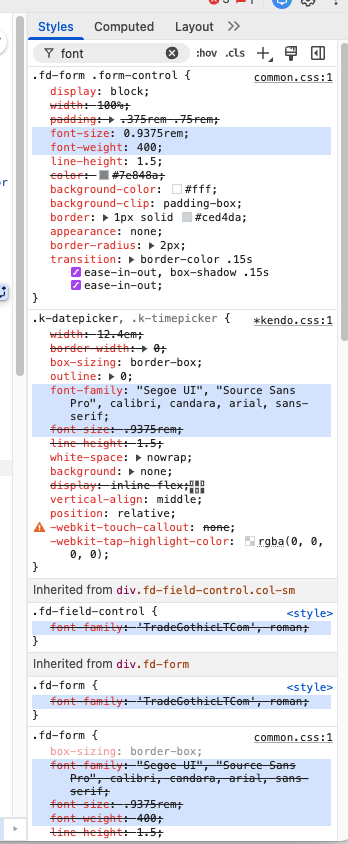
However, there are still some elements that are overridden by classes like .k-upload, .k-button, .k-timepicker, .k-datepicker, etc., e.g.:
I tried setting the font directly for these classes in the CSS editor, but it didn't work for me. I also tried assigning a .test class and setting the font that way, but it didn't work either.
Is there any way to set them all at once or directly through each class?
Thanks for the help,
Felix
felix
January 20, 2026, 2:39pm
2
I tried around for a bit and this worked pretty well so far:
/* ============================================
   CUSTOM FONT: MyCustomFont
   For Plumsail Forms (incl. Kendo UI elements)
   ============================================ */

/* 1. Load font from SharePoint library */
@font-face {
  font-family: 'MyCustomFont';
  src: url('https://yourtenant.sharepoint.com/sites/YourSite/YourLibrary/YourFont.ttf') format('truetype');
}

/* 2. Global font override for the entire form
      - .fd-form: Main form container
      - .fd-form *: All child elements
      - [class*="k-"]: All Kendo UI components (Datepicker, Timepicker, Buttons, etc.)
      !important overrides the Kendo stylesheets */
.fd-form,
.fd-form *,
[class*="k-"] {
  font-family: 'MyCustomFont', sans-serif !important;
}

/* 3. Define exceptions (e.g., icon fonts) */
.ka-icon {
  font-family: inherit !important;
}
felix
January 22, 2026, 7:41am
3
I recognized some issues because our custom font is probably wider than the standard "Segoe UI".
This happens even when the content doesn't come close to the width limit of the field.
As soon as you hover over the field, the content displays correctly:
I tried to fix this with the following CSS adjustments, and it has worked so far:
/* ============================================
   FIX: Kendo UI Dropdowns - Textabschneidung verhindern
   ============================================ */
.fd-form .k-combobox {
    width: 100% !important;
}

.fd-form .k-combobox .k-input,
.fd-form .k-combobox .k-dropdown-input-wrap {
    width: 100% !important;
    min-width: 0;
    flex: 1 1 auto !important;
}

.fd-form .k-dropdown-wrap {
    width: 100% !important;
}

.fd-form .k-list .k-item {
    white-space: normal !important;
    word-wrap: break-word;
}
Does anyone have a better/smoother solution for this, or has anyone encountered a similar challenge?
Dear @felix ,
felix
March 19, 2026, 8:51am
5
Hello,
the behavior not showing the full content in the fields “dropdown” , as described in my last post, is now gone.
I don’t know in detail what caused or either solved this.
Our custom css code looks now as such:
/* ============================================
   CUSTOM FONT: TradeGothicLTCom
   Für Plumsail Forms (inkl. Kendo UI Elemente)
   ============================================ */

/* 1. Schriftart laden aus SharePoint-Bibliothek */
@font-face {
  font-family: 'TradeGothicLTCom';
  src: url('***') format('truetype');
}

/* 2. Globaler Font-Override für das gesamte Formular */
.fd-form,
.fd-form *,
[class*="k-"] {
  font-family: 'TradeGothicLTCom', roman;
}

.k-button,
.k-maskedtextbox {
  font-family: 'TradeGothicLTCom', roman !important;
}

/* Ausnahmen */
.ka-icon {
  font-family: inherit !important;
}

/* ============================================
   FIX: Kendo UI Dropdowns - Textabschneidung
   ============================================ */
.fd-form .k-combobox {
    width: 100% !important;
}

.fd-form .k-combobox .k-input,
.fd-form .k-combobox .k-dropdown-input-wrap {
    width: 100% !important;
    min-width: 0;
    flex: 1 1 auto !important;
}

.fd-form .k-dropdown-wrap {
    width: 100% !important;
}

.fd-form .k-list .k-item {
    white-space: normal !important;
    word-wrap: break-word;
}
@Nikita_Kurguzov Thanks for double checking the issue!