Within the past week, we have started to run into an issue with creating a new ticket manually in our Plumsail HelpDesk instance, mainly that creating them manually is not working.
Do I need to repair the instance or something? I’m not sure why it isn’t working.
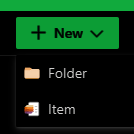
Also, the button to create a new ticket has changed to a dropdown menu, and when this change happened, the issue started happening. Is there any way to revert this so it just creates a new ticket?
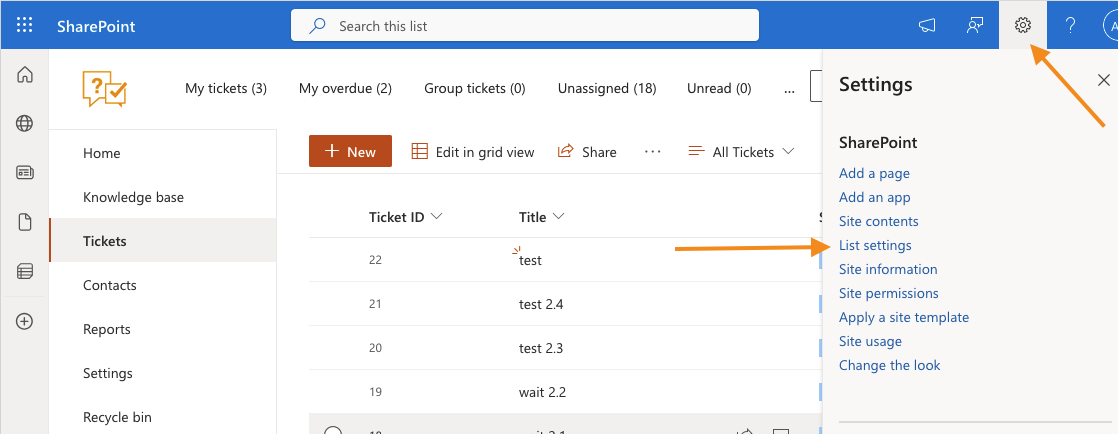
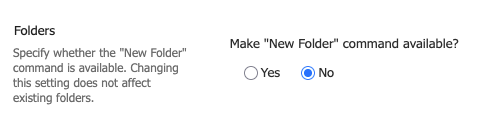
After this, the button will return to its previous appearance, without the drop-down menu.
Please try to create a ticket again and tell me if it worked or not.
If the error still appears, please try to create a ticket in Incognito mode, will this error appear here again?
Please also clarify what exactly you would like to change in the menu bar?
This button is a standard Sharepoint button, it cannot be removed simply in the settings.
If you use custom forms, it may be possible to hide it using CSS code.
Please clarify whether you use forms for your site?
If you decide to hide this button, you can do it like this:
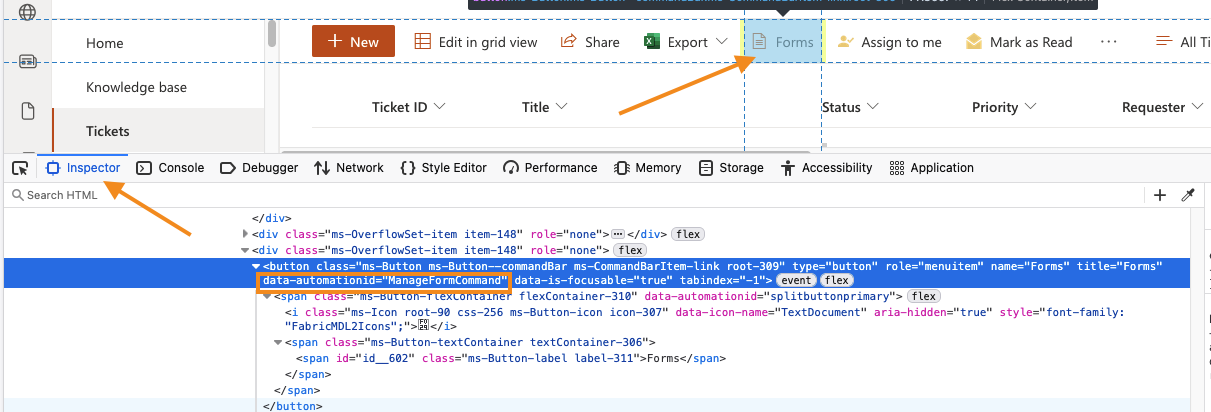
Open the browser console (F12 or right click → Inspect). While on the Inspector tab, click on the button, then you will see what this HTML element is and copy data-automationid: